
How to Record a Video with Sound on PC?
How to Do Live Streaming with Screen Recording on PC?
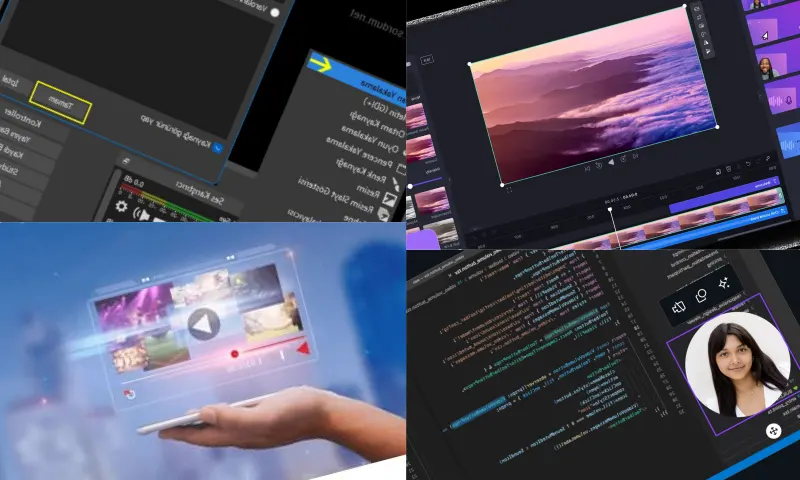
Recording a video with sound on PC is quite easy. Install suitable screen recording software on your computer. Free software like OBS Studio or commercial software like Camtasia Studio can be preferred. After opening the software, select the screen you want to record and enable sound recording. There is an option to record two separate audio sources: system sound and microphone sound. After preparing the content you want to record, start recording using your screen recording software. At this step, you can check your microphone or other audio sources if necessary. If you are looking for a PC screen recording program, you can visit the website https://recorditor.com/tr/.
Where Are Videos Recorded with PC Screen Recording Stored?
Live streaming with PC screen recording is done in a few simple steps. Download and install suitable screen recording software for live streaming. Free software like OBS Studio is commonly preferred. After opening the software, configure the settings for the platform you will be streaming to. At this step, the platform to be streamed to (Twitch, YouTube, Facebook, etc.) is selected, and the necessary stream key or credentials are entered. To start the live stream, click the "Start Streaming" or a similar button. The software will stream your screen and/or webcam live. When you want to stop streaming, end the stream by clicking the "Stop Streaming" or a similar button. Videos recorded with PC screen recording are saved to a folder specified by the user. This folder is set as the default recording location for the PC screen recording software. However, users can customize the location where they will record. Users can find the recorded videos by opening the screen recording software and then checking the recording location settings. They can copy, move, or delete the recorded videos as they wish.